
Difference in Trackbacks and Pingbacks in WordPress
 First there were trackbacks. Then along came pingbacks. And both were followed closely by spammers who found the loopholes in each. Read on to learn the difference in the two, how to set your site up for them, why you want to use them, and why you may not in the future.
Global Settings to Receive Trackbacks and Pingbacks
Before we get into the differences in trackbacks and pingbacks, let me show you where you can find the settings for them on your WordPress site.
There is a global setting in WordPress to allow your site to receive both trackbacks and pingbacks.
From your Dashboard, go to Settings > Discussion.
At the top you’ll see the Default articles settings section, as shown below.

Per Page and Per Post Settings
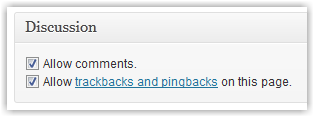 You have the opportunity to override the global settings above on any post or page. Below the text editor, there is a Discussion module, as shown at left.
Since WordPress 3.0, the Discussion module was hidden by default. If you don’t see the module, click the Screen Options tab in the top right. (It’s just under the link you click in the black admin bar to log out. Be sure you’re in the text editor when you do this. The options shown vary depending on the admin page you’re viewing.)
Click the checkbox for Discussion and you’ll now see the module below your text editor.
Differences in Trackbacks and Pingbacks
On a superficial level, trackbacks and pingbacks serve much the same purpose and that is to notify a blog owner that someone has linked back to their site. The difference is, trackbacks appear as comments with content. Pingbacks appear as a link with no content.
Trackback Example
In my weekly Tips Tuesday posts, I share links to specific posts on other blogs that I believe my readers will find helpful. That sends a trackback and/or pingback to the sites I linked.
Where and what it displays. The other blog owners will see a notification on their site in the Comments section of that post that I sent a trackback, but only if they allowed for trackbacks on that post. They will also see the content I created that surrounds the link.
Because it displays in their Comments section, the other blog owners can elect to approve it or not. If they approve, it will be displayed along with their other comments.
Why it’s good. It’s not exactly like I left a comment on their blog post, but it’s close. So, the other blog owner may want to include it in their comments.
Why it’s bad. Spammers do this sort of linking hoping that the owner of the original post will allow the comment to show on their site.
Pingback Example
When I share a link on Tips Tuesday to another site’s post, the other blog owner is notified in their site’s Incoming Links module, but only if they have pingbacks enabled.
Where and what it displays. The pingback is displayed in the Incoming Links module on the other blog owner’s Dashboard admin page. In other words, it’s simply a one-way notification. There’s nothing for the other blog owner to approve, and it doesn’t display anywhere on their site, sort of.
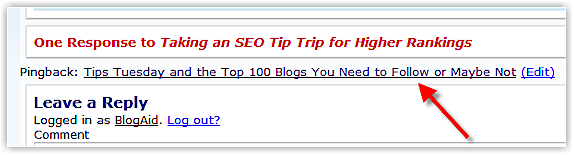
Most themes are now set up to also have pingbacks appear on the admin side of a site as a regular Comment for moderation/approval. However, if it is approved, it still doesn’t display as a regular comment on the viewer side of the site (the way the public sees the site). Instead, it displays in a line below the post, but above the Comments. It’s just a link to the post/page that sent the pingback.
Here’s an example. The red arrow points to the pingback. As you can see, it’s the title of the post where I mentioned the Taking an SEO Tip Trip post. If the pingback were from another site, it would have a link to the post on their site where they mentioned my current post.
 Below is how it displays in your master Comments list. (This is not the Comments section below the post. It’s the master list of all comments on your site that you will see when you click the Comments link in the left sidebar of your admin pages.)
 The red arrow points to the pingback. On the left it shows the title, URL, and IP of the site that sent the pingback. In this case, it was BlogAid. In the center you’ll see the surrounding content that was near the link. Notice that the content is there just for me to view in the admin area. It does not display in the pingback link on the site (as shown in the previous image). On the far right is the post title that received the pingback.
Below the pingback is a regular blog post comment.
Why it’s good. It’s good for you to know who is linking to your site. So, set your posts and pages to allow for pingbacks.
Why it’s bad. Well, there aren’t many disadvantages to allowing for pingbacks unless you don’t moderate them. You don’t want to give a spammer a link on your site any more than you would give them a comment.
Here’s the Rub
Go look at the image of the Discussion module near the beginning of this post. You see that there is only one checkbox for both trackbacks and pingbacks. You can’t allow for one without the other.
As your site becomes more popular, you’ll attract more spammers, which means more of them will be linking to you from their sites to get a trackback in your Comments area.
Of course, you want all of the backlinks to your site you can get because Google will rank you as more important. So, you have to be careful not to let the spammers sneak in too. Here’s the thing, Google is going to count those backlinks whether you display them on your site or not.
Most extremely popular sites simply turn trackbacks and pingbacks off. They know they’re being shared and the extra work it takes to sort the good from the bad is not worth it. They know that folks who leave real comments are much more valuable.
Self-Pinging
The beauty and downfall of pingbacks is that they are automated. (There was a time when trackbacks were not automated, but now they are too.) The problem is pingbacks self-ping. For example, if I publish a post and in it I link to a previous post on BlogAid, I’ll get a pingback notice, just like the one shown previously. If I don’t want the pingback link to show above the Comments area, I have to unapproved it.
If you internally cross-link your posts and pages a lot, this could turn into a bit of moderation work. To tell you the truth, since the pingback displays as another link on my site, I really don’t mind it being there.
Your Turn
Do you allow for trackbacks and pingbacks on your site? Do you moderate them like you do comments?

Thank you, MaAnna! This was very helpful and answered some questions that I’ve had for a while. Not knowing if it was best or not, I’ve been allowing for trackbacks and pingbacks, and moderating them. Now that I know the positives for these things, especially the self-pings, I won’t worry about them too much.
Thanks again!
Dee
As in all things, moderation is the key! (Sorry Dee, I couldn’t resist that.) Glad you found it helpful and isn’t it comforting to KNOW what you’re doing on your site? That’s what I’m here for.
I like your posts that address the details like this, and as you promise, you turn the geek speak into plain English :-). Much appreciated!